![Featured image of post [AdSense #5] Transfer USD from Hana Million Dollar Account to Mirae Asset Securities, No Fee](/ko/hana-mirae-foreign-currency-transfer/cover_hu_fa8a60a99a8206ae.webp)
Direct Answer & TL;DR
- Preparation: Register your Mirae Asset foreign-currency linked account in the Mirae Asset (M-STOCK) app first so it appears as a deposit account option in the Hana Bank OneQ app.
- No fee: Transfer from Hana Million Dollar Account to Mirae Asset linked FX account is processed without an additional transfer fee (confirm on the transfer screen at the time of transfer).
- Path: After registering in the Mirae Asset app, open the Hana Bank OneQ app, go to Transfer to Hana Bank, set withdrawal account, deposit account (Mirae Asset FX), currency (USD), and amount, then confirm.
Why move from Million Dollar Account to a securities FX account?
After AdSense earnings land in your Hana Million Dollar Account, many people move that balance to Mirae Asset’s foreign-currency linked account for investing (stocks/ETFs), rebalancing, or simply keeping FX in one place in the securities app.
Transfers from the bank to the securities linked FX account are often treated as within the same financial group, so no separate remittance fee is charged. When I did it, sending USD from Hana Million Dollar Account to Mirae Asset’s linked FX account completed with no extra fee. One thing you must do in advance: register the linked FX account.
Preparation: Register Mirae Asset foreign-currency linked account
To choose “Mirae Asset foreign-currency linked account” as the deposit account in the Hana Bank OneQ app when transferring, that account must be registered first in the Mirae Asset (M-STOCK) app under the linked FX account agreement. By default it is “unregistered,” so complete registration there first.
Step 1: Find “Foreign currency linked account registration/cancellation”
Open the Mirae Asset (M-STOCK) app, then use the search bar at the top to search for “외화연계계좌등록/해지” (Foreign currency linked account registration/cancellation).
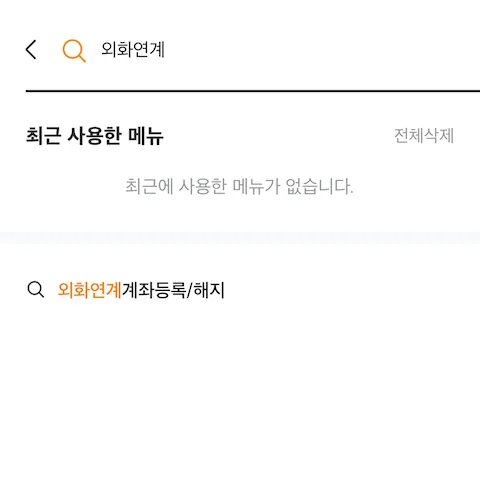 Search for “외화연계계좌등록/해지” in the Mirae Asset app to open the registration menu.
Step 2: Complete registration on the registration screen
On the “외화연계계좌 등록/해지” screen, check whether the status is “미등록” (unregistered) or “등록” (registered). If unregistered, select Hana Bank as the financial institution and fill in:
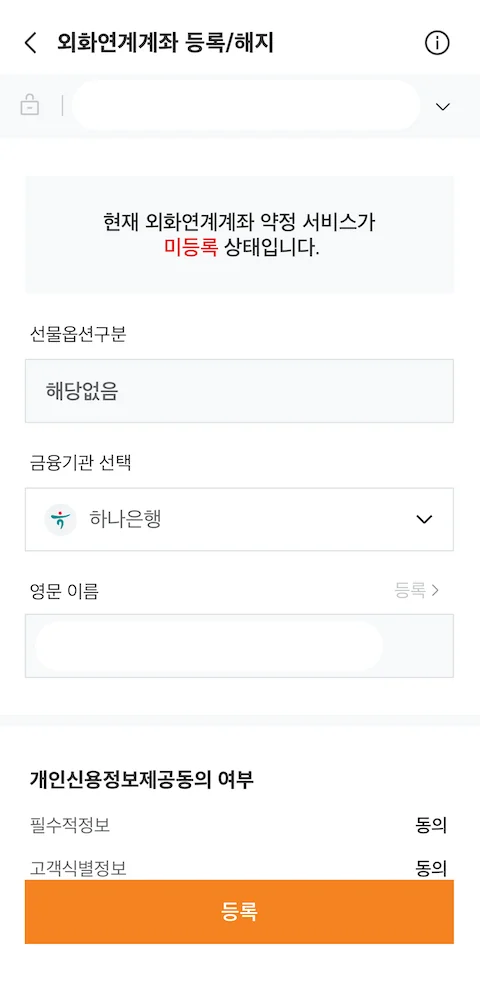 Registration screen when the linked FX account agreement is unregistered. Select Hana Bank, enter English name, agree to consent, then tap [Register].
| Field | Value |
|---|---|
| Futures/options | Not applicable |
| Financial institution | Hana Bank |
| English name | Same as passport/account; then tap [Register] |
| Credit info consent | Agree to required items |
After registration, note the newly created linked FX account number, then open the Hana Bank OneQ app to proceed with the transfer. The linked account will appear in the deposit account list under “Transfer to Hana Bank.”
[!TIP] Transfer hours Transfers from Hana Bank to Mirae Asset’s linked FX account are available weekdays 09:00–23:50 (KST, business days only). Service may be restricted on weekends and holidays.
Transfer to Hana Bank: Withdrawal → Deposit → Currency → Amount
Once the linked FX account is registered, open the Hana Bank OneQ app and go to “Transfer to Hana Bank” (하나은행으로 송금):
- Withdrawal account: Hana Million Dollar Account (or your Hana FX account)
- Deposit account: Mirae Asset foreign-currency linked account
- Currency: USD
- Amount: Enter the USD amount and tap [Confirm]
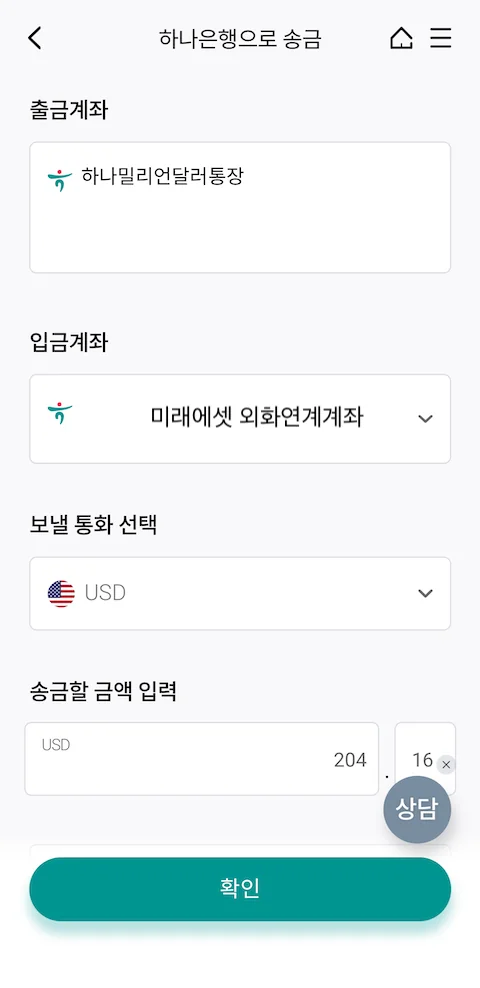 Set withdrawal account (Hana Million Dollar), deposit account (Mirae Asset FX), currency (USD), and amount; confirm to complete the transfer with no fee.
Complete any final authentication as prompted; the USD amount will be transferred to the Mirae Asset linked FX account without a separate fee.
[!NOTE] Note Always confirm the exact fee (if any) on the transfer screen before completing the transaction.
Conclusion
To move USD from Hana Million Dollar Account to Mirae Asset’s linked FX account: ① Register the linked FX account in the Mirae Asset (M-STOCK) app, then ② In the Hana Bank OneQ app, use “Transfer to Hana Bank” and enter withdrawal account, deposit account, currency, and amount. In my experience, the transfer completed with no additional fee.