![Featured image of post [Oracle Cloud #2] VCN First Fixes Public IP! But Then... Out of Capacity](/ko/oracle-cloud-arm-vcn-setup/cover_hu_2186270a5ac35046.webp)
Direct Answer & TL;DR
- Create the VCN first — the Public IP toggle works correctly when you select a pre-configured Public Subnet.
- Boot volume can be set up to 200GB on the free tier.
- However! I got an “Out of host capacity” error and couldn’t create the instance. 😭
Previously: Instance Creation Failed
In the previous post, I tried to create an Oracle Cloud Always Free ARM instance but got stuck because the Public IPv4 toggle wouldn’t switch from OFF to ON.
This time, I changed my approach: create the VCN (Virtual Cloud Network) first, then create the instance.
Step 1: Create the VCN First
From the OCI console left menu, select Networking → Virtual cloud networks.
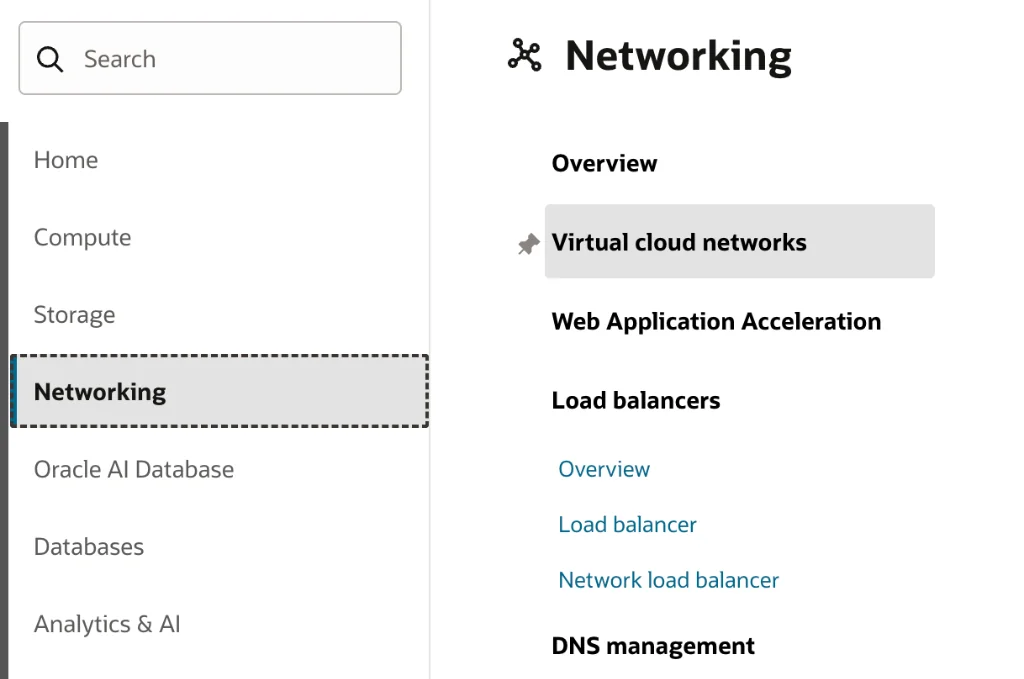 Click Networking in the left menu to find Virtual cloud networks.
Using VCN Wizard
You can configure a VCN manually, but for beginners, the Start VCN Wizard is much easier.
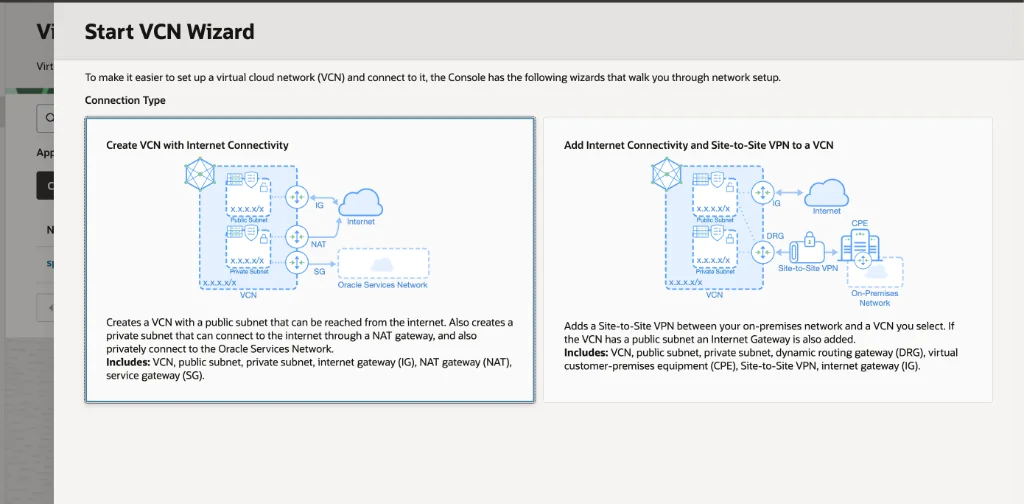 Click “Start VCN Wizard”.
Selecting “Create VCN with Internet Connectivity” automatically configures:
- VCN (Virtual Cloud Network)
- Public Subnet — externally accessible subnet
- Internet Gateway (IG) — gateway for internet connectivity
- NAT Gateway — for internet access from Private Subnet
- Service Gateway — for Oracle Services Network access
[!TIP] This might be exactly why the Public IP toggle didn’t work in the previous post. Without a Public Subnet with an Internet Gateway, Public IP assignment isn’t possible. The VCN Wizard handles all of this automatically.
Give your VCN a name, keep the defaults, and create it.
VCN Created Successfully
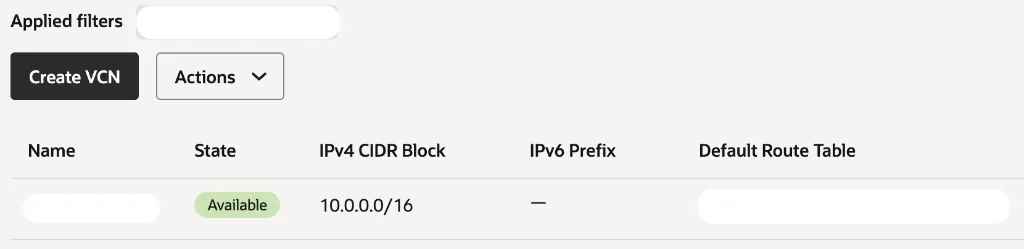 The VCN is now in “Available” state. The IPv4 CIDR Block defaults to 10.0.0.0/16.
VCN is up and running! Now let’s go create that instance.
Step 2: Create Instance — Public IP Finally Fixed!
Navigate back to Compute → Instances → Create Instance. Configure the same settings as the previous post: OS image (Ubuntu), Shape (Ampere ARM), OCPU/memory (4/24GB).
In the network settings, select the VCN and Public Subnet you just created. Then scroll down to see…
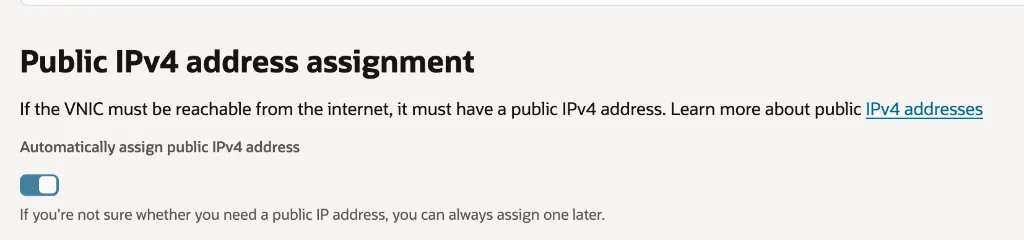 Finally! The “Automatically assign public IPv4 address” toggle is ON (blue)! 🎉
The Public IP toggle is ON! 🎉🎉🎉
The same toggle that refused to budge before is now automatically set to ON after selecting the VCN’s Public Subnet. Who could understand this joy
[!NOTE] Key takeaway: When creating an instance with “Create new virtual cloud network,” the Public IP toggle may be disabled. Selecting a Public Subnet from a VCN created via the VCN Wizard resolves this perfectly.
Step 3: SSH Key Download
To SSH into your instance, you need a key pair. If you have an existing SSH key, upload the public key. Otherwise, Oracle will generate one for you.
I chose “Generate a key pair for me” and clicked Save private key to download the private key file (.key).
[!CAUTION] The SSH private key can only be downloaded at this moment! You won’t be able to download it again after instance creation. Make sure to save it somewhere safe.
Lose it and you’re locked out forever… truly heartbreaking
Step 4: Boot Volume — Bumping to 200GB
Oracle Cloud’s free tier allows boot volumes up to 200GB. The default is usually around 46.6GB (or 50GB), and since we can increase it for free, I maxed it out.
In the Boot volume section:
- Boot volume size (in GB): Changed to
200
[!TIP] Free tier boot volume storage is pooled across your account at 200GB total. You can put all 200GB into one instance or split it across multiple. If you’re only using one instance, allocating 200GB at once is the cleanest approach.
🚧 And Then… “Out of host capacity”
With everything configured, I clicked Create. Finally! My very own free ARM server is about to…
“Out of host capacity.” 💀
An error saying there’s no available server capacity. Everything was perfectly configured, and at the very last moment, this error hits… devastation upon devastation
Why Does This Happen?
Oracle Cloud’s free tier ARM instances are a limited resource contested by users worldwide. Although Chuncheon is often said to have more capacity than Seoul, I tried in the Chuncheon region (ap-chuncheon-1) and still encountered this error.
| Situation | Description |
|---|---|
| Out of host capacity | No available ARM hosts in the region/availability domain |
| Region differences | Seoul (ap-seoul-1) tends to be busier than Chuncheon (ap-chuncheon-1) |
| Timing | Some users report better luck during early morning hours or weekends |
Today’s Wins and Lessons
✅ What Worked
- Public IP issue resolved: Creating VCN first makes the Public IP toggle work!
- Full configuration complete: OS, Shape, OCPU, memory, network, SSH key, boot volume — all set
❌ Still Pending
- Actually creating the instance: Failed due to capacity limits. Will keep retrying.
💡 Lessons Learned
- Create VCN before the instance — Using VCN Wizard auto-configures Internet Gateway, Subnet, etc.
- Creating a free ARM instance is difficult.
- Configuration persists — Even if you hit a capacity error, your settings are saved for retrying.
Wrapping Up: The Journey Continues
The joy of solving the Public IP issue was real, but it was immediately dampened by the capacity error. Emotional roller coaster
But I’m not giving up! The moment capacity becomes available, I’ll create the instance and follow up with posts on initial server setup, security configuration, and Docker installation.
Now, how can I actually create this 4-core, 24GB free server?
Editor’s note: Can’t really complain since it’s free… but still, the frustration is real. 😂