![Featured image of post [Oracle Cloud #1] Setting Up a Free ARM Server on Oracle Cloud: 4 Cores, 24GB RAM for Free?](/ko/oracle-cloud-arm-server/cover_hu_388d0da42d940d78.webp)
Direct Answer & TL;DR
- Oracle Cloud Always Free tier offers up to 4 OCPUs + 24GB RAM with ARM (Ampere) — forever free.
- ARM vs AMD: On the free tier, ARM provides 4x more CPU and 24x more memory than AMD. There’s no reason not to choose ARM.
- Public IP heads-up: The Public IPv4 toggle may be stuck on OFF during instance creation and refuse to switch ON. I had to stop because of this. 😅
The Sweet Temptation of a “Free Server”
If you run personal projects, there comes a point where you need your own server. Deploying toy projects, running an API server, or simply fulfilling the dream of “having a server.” But with AWS, GCP, and Azure, the fear of surprise bills after the free tier expires is real… my heart races just registering a credit card
That’s when I discovered Oracle Cloud Infrastructure (OCI)’s Always Free tier. The word “Always” got me hooked. Free forever with no time limit? I had to try it.
And when I saw the free specs for ARM-based instances — 4 OCPUs and 24GB RAM? Is this really free? 🤯
Why ARM? AMD vs ARM Free Tier Comparison
Oracle Cloud’s Always Free tier offers two Shape options: AMD and ARM (Ampere). Bottom line: there’s no reason not to choose ARM. The table below says it all.
| Spec | AMD (VM.Standard.E2.1.Micro) | ARM (VM.Standard.A1.Flex) |
|---|---|---|
| OCPU | 1/8 (Burstable) | Up to 4 |
| Memory (RAM) | 1 GB | Up to 24 GB |
| Network Bandwidth | 480 Mbps | 4 Gbps |
| Max Instances | Up to 2 | Up to 4 (pooled 4 OCPU/24GB) |
| Architecture | x86_64 | ARM (aarch64) |
| Boot Volume | Up to 200 GB (pooled) | Up to 200 GB (pooled) |
| Processor | AMD EPYC | Ampere Altra (3.0 GHz) |
[!TIP] The only downside of ARM? If you need x86-only software. But Docker, Node.js, Python, Nginx, and most popular software fully support ARM. These days, it’s harder to find software that doesn’t support ARM.
With AMD’s 1/8 OCPU and 1GB RAM, honestly… it’s pretty tight for running anything meaningful. ARM with 4 OCPUs and 24GB RAM, on the other hand, is enough to run most personal projects and even small-scale services. They’re giving this away for free? Did Oracle suddenly become generous?
Step-by-Step ARM Instance Creation Guide
Alright, let’s create an ARM instance. I’ll assume you already have an Oracle Cloud account.
[!NOTE] If you don’t have an Oracle Cloud account, sign up at oracle.com/cloud/free. A credit card is required — they’ll charge about $1 (USD) for identity verification. Don’t panic — it gets immediately refunded! As long as you stick to the Always Free tier, you won’t be charged.
Step 1: Start Instance Creation
Log into the OCI console, then navigate to Compute → Instances → Create Instance.
Step 2: Select an OS Image
The first thing you configure on the instance creation screen is the operating system.
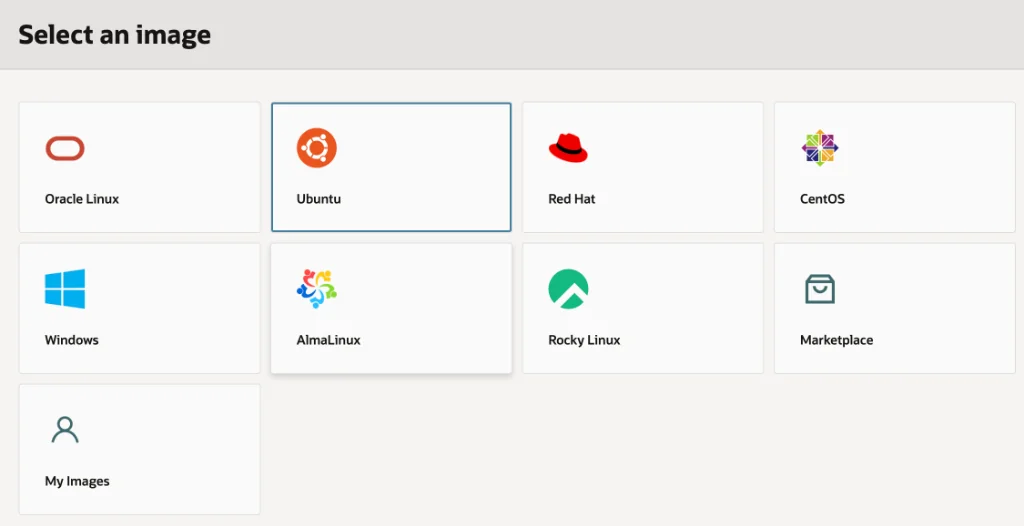 Various options including Ubuntu, Oracle Linux, CentOS, and more. I went with Ubuntu since I’m most familiar with it.
Available operating systems include:
- Oracle Linux — Oracle’s RHEL-based distro
- Ubuntu — The most popular choice with abundant references
- CentOS / AlmaLinux / Rocky Linux — RHEL-compatible distros
I personally recommend Ubuntu. It has the largest community, and finding solutions for ARM-related issues is easiest. That’s what I chose too.
Step 3: Select Shape — Ampere (ARM)
This is the most important step. In the “Shape” section, click Browse all shapes to see the following screen.
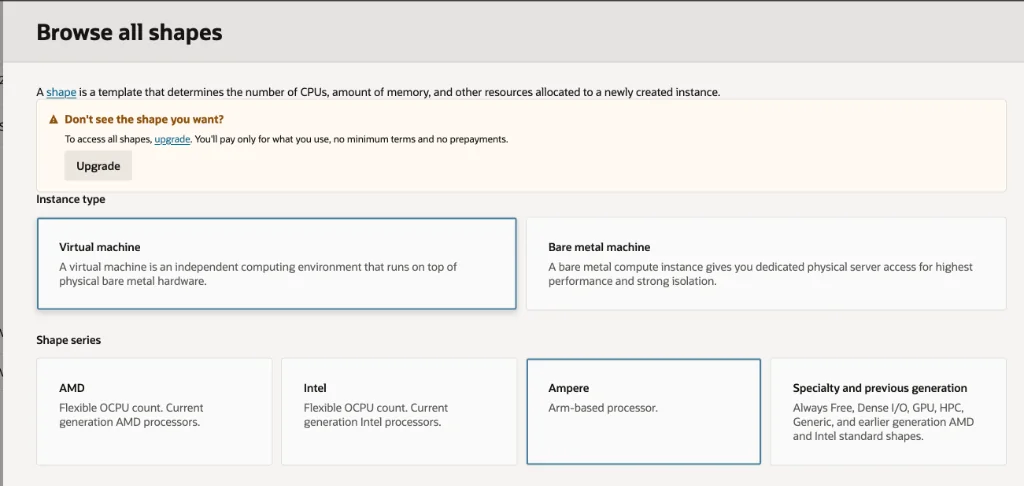 Select “Virtual machine” for Instance type, then choose “Ampere” in Shape series. Not AMD, not Intel — Ampere!
Select Virtual machine for Instance type, then choose Ampere (Arm-based processor) in Shape series. You’ll see AMD and Intel too, but as we saw in the comparison table, ARM is overwhelmingly better on the free tier.
Step 4: Configure OCPUs and Memory
After selecting Ampere, the VM.Standard.A1.Flex Shape appears with the “Always Free-eligible” badge.
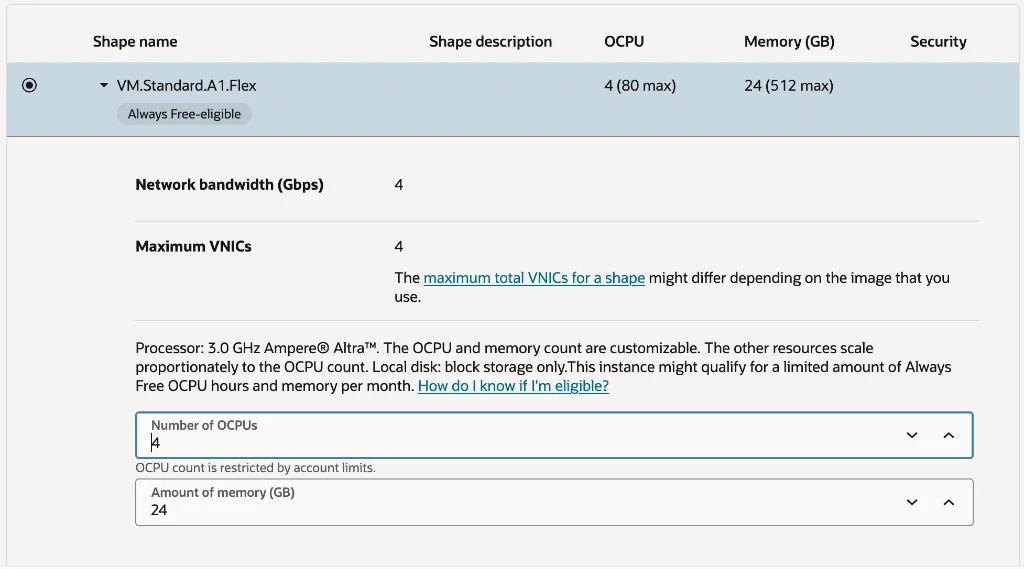 VM.Standard.A1.Flex — that “Always Free-eligible” badge is a welcome sight. Set OCPUs to 4 and memory to 24GB.
- Number of OCPUs:
4(free tier maximum) - Amount of memory (GB):
24(free tier maximum)
[!IMPORTANT] ARM resources on the free tier are pooled across your entire account. You can allocate all 4 OCPU/24GB to one instance, or split them across two instances at 2 OCPU/12GB each. If it’s your first time, I recommend putting everything into one instance.
Step 5: Network Setup (VCN & Subnet)
Configure the VCN (Virtual Cloud Network) and Subnet in the network settings.
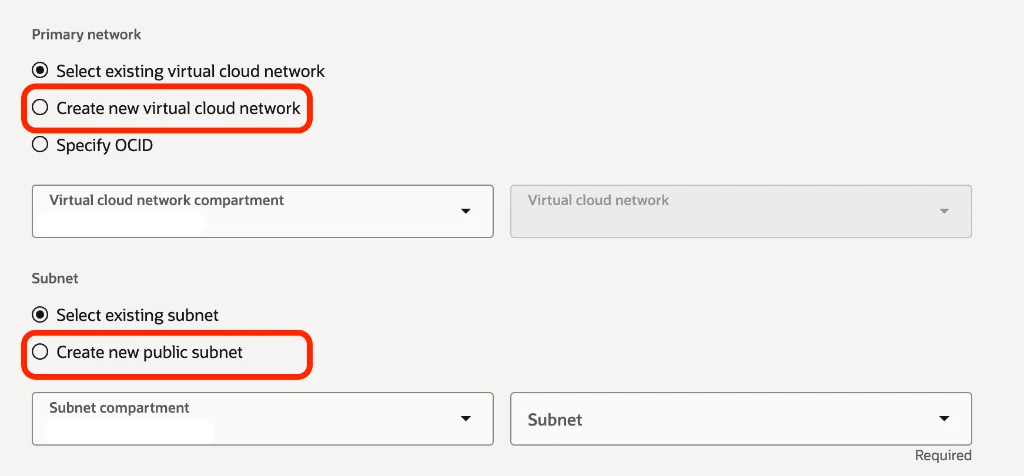 You can use an existing VCN or create a new one. For first-timers, selecting “Create new virtual cloud network” and “Create new public subnet” is the easiest approach.
If this is your first instance:
- Primary network: Select
Create new virtual cloud network - Subnet: Select
Create new public subnet
The defaults work fine, but you’ll need to open ports in the Security List later for external access (e.g., SSH port 22, HTTP 80, HTTPS 443, etc.).
🚧 This Is Where I Stopped: The Public IP Problem
After configuring everything, I checked the “Public IPv4 address assignment” option at the bottom of the network section…
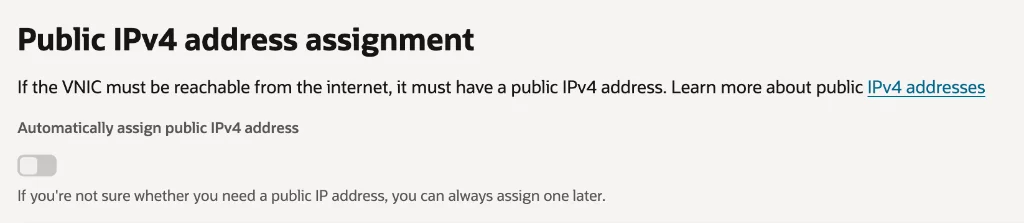 The “Automatically assign public IPv4 address” toggle is OFF. And… it won’t switch to ON.
The “Automatically assign public IPv4 address” toggle was OFF, and no matter how many times I clicked, it wouldn’t switch to ON. 😤
Why Does Public IP Matter?
Without a Public IP, your instance becomes an “isolated island” unreachable from the outside. No SSH access, no exposing web servers to the public. Sure, you can assign a Public IP later, but…
Why I Wanted to Set It During Creation
“Can’t you just do it later?” you might think.
True — after instance creation, you can assign a Reserved Public IP or modify the VCN Subnet settings to add a Public IP.
But here’s why I wanted to set it up during creation — I wanted to finalize all network settings in one go. Assigning an IP separately later means navigating through multiple menus, which can be confusing for beginners.
What’s Next
For now, I’ve paused the instance creation due to the Public IP issue. But I haven’t given up! Next thing to try:
- Create a new VCN and Public Subnet first, then select that Subnet during instance creation.
Wrapping Up: The Allure of Free, and the Joy of Troubleshooting
Oracle Cloud’s Always Free ARM instance is, on paper, a dream free server for individual developers. 4 OCPUs and 24GB RAM is enough to run multiple Docker containers or host a personal blog server.
But nothing in life is completely free, it seems. Turns out the cost is paid in troubleshooting hours 🤣
Once the Public IP issue is resolved, I plan to follow up with posts on initial server setup, Docker installation, and security configuration. If you’re interested in Oracle Cloud, let’s troubleshoot together!
Editor’s note: The journey to a free server isn’t over yet. But the fact that you can get 4 cores and 24GB for free makes it well worth the effort! 💪