TL;DR — Quick Summary for Busy Readers
- Auto Hotspot ON: Use iPhone Shortcuts to automatically enable Personal Hotspot when Bluetooth connects to Tesla
- Auto Hotspot OFF: Automatically disable Personal Hotspot when Bluetooth disconnects from Tesla
- Save $9.99/month: Skip Tesla Premium Connectivity subscription for basic streaming needs
This guide lets you enjoy music streaming in your Tesla without paying for Premium Connectivity — all through the power of iPhone automation.
Automating your Tesla experience with iPhone Shortcuts
Introduction: Seamless Music Streaming via Automation
A high-quality streaming experience in a Tesla can be achieved without a Premium Connectivity subscription (typically $9.99/month). The solution lies in automating the iPhone’s Personal Hotspot function to eliminate manual intervention.
The following guide outlines how to use the iPhone Shortcuts app to instantly activate your hotspot the moment you enter your vehicle.
Automation Logic: Key Components and Benefits
Automation 1: Auto-Enable Hotspot When Connecting to Tesla
This is the main attraction. When your iPhone detects a Bluetooth connection to your Tesla, it automatically turns on Personal Hotspot. Your Tesla connects to your phone’s internet, and boom — you’ve got streaming without Premium Connectivity.
What you’ll need:
- iPhone with iOS 14 or later
- Tesla paired via Bluetooth (already done if you use Phone Key)
- 2 minutes of your time
Automation 2: Auto-Disable Hotspot When Leaving Tesla
This one’s about saving data and battery. When Bluetooth disconnects from your Tesla, your hotspot automatically turns off. This prevents your hotspot from staying on after you leave the car and draining your battery.
Once the functional goals are defined, we can proceed with the specific automation configuration steps.
Practical Guide: Configuring Auto-Hotspot Activation (Steps 1-6)
Open Shortcuts App and Go to Automation
First things first — find the Shortcuts app on your iPhone. If you’ve never used it, it’s that colorful icon with overlapping squares that you’ve probably ignored for years. (No judgment here, I did too.)

Shortcuts app icon
Tap on “Automation” at the bottom of the screen.
Create New Automation
If this is your first automation, you’ll see a screen saying “No Automations” with a big blue button saying “New Automation”. Tap it.
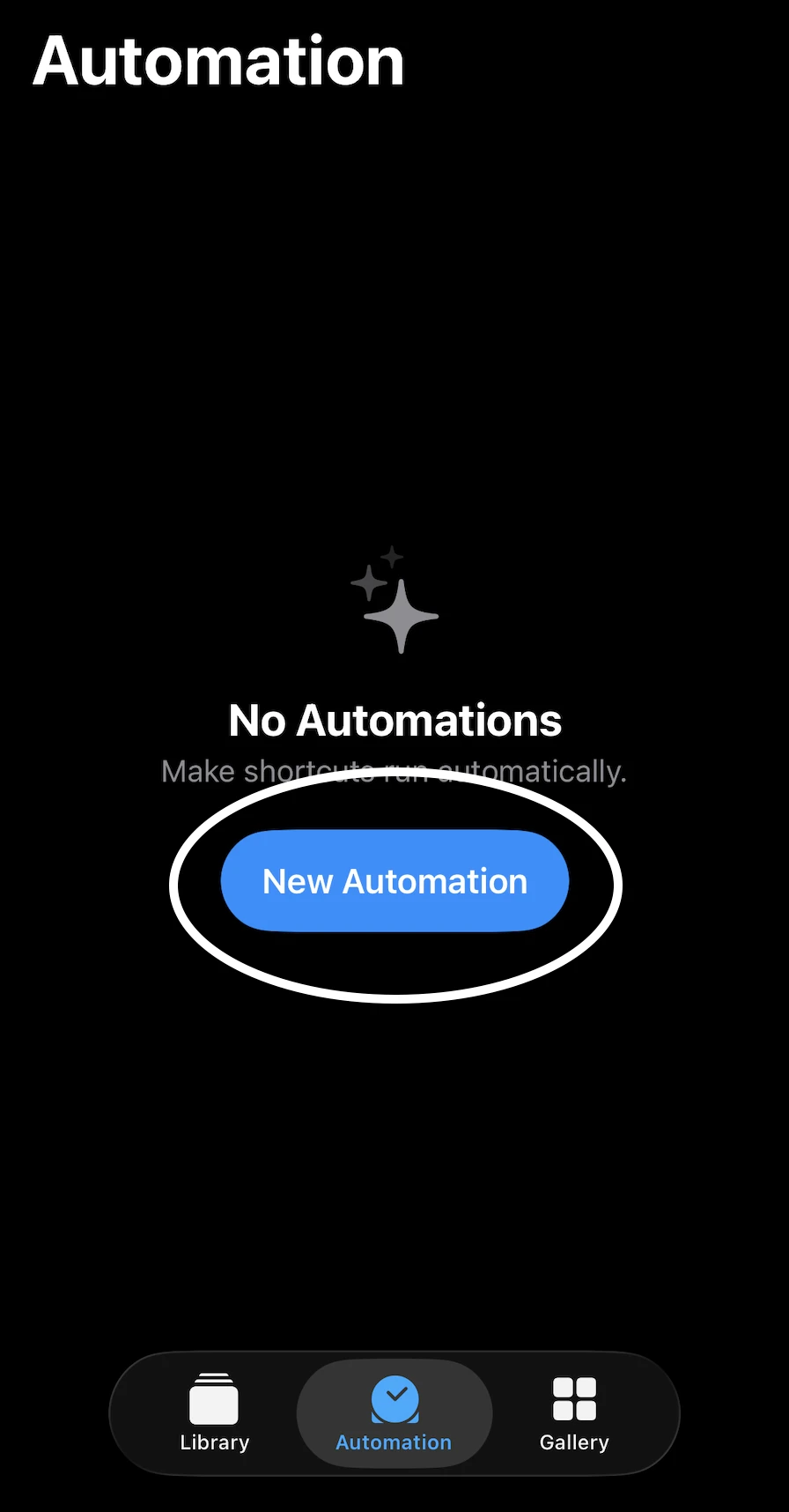
Creating a new personal automation
If you already have automations, tap the "+" button in the top right corner.
Select Bluetooth as Your Trigger
Scroll down the list of triggers and find “Bluetooth”. This is what tells your iPhone to do something when it connects to a specific Bluetooth device.
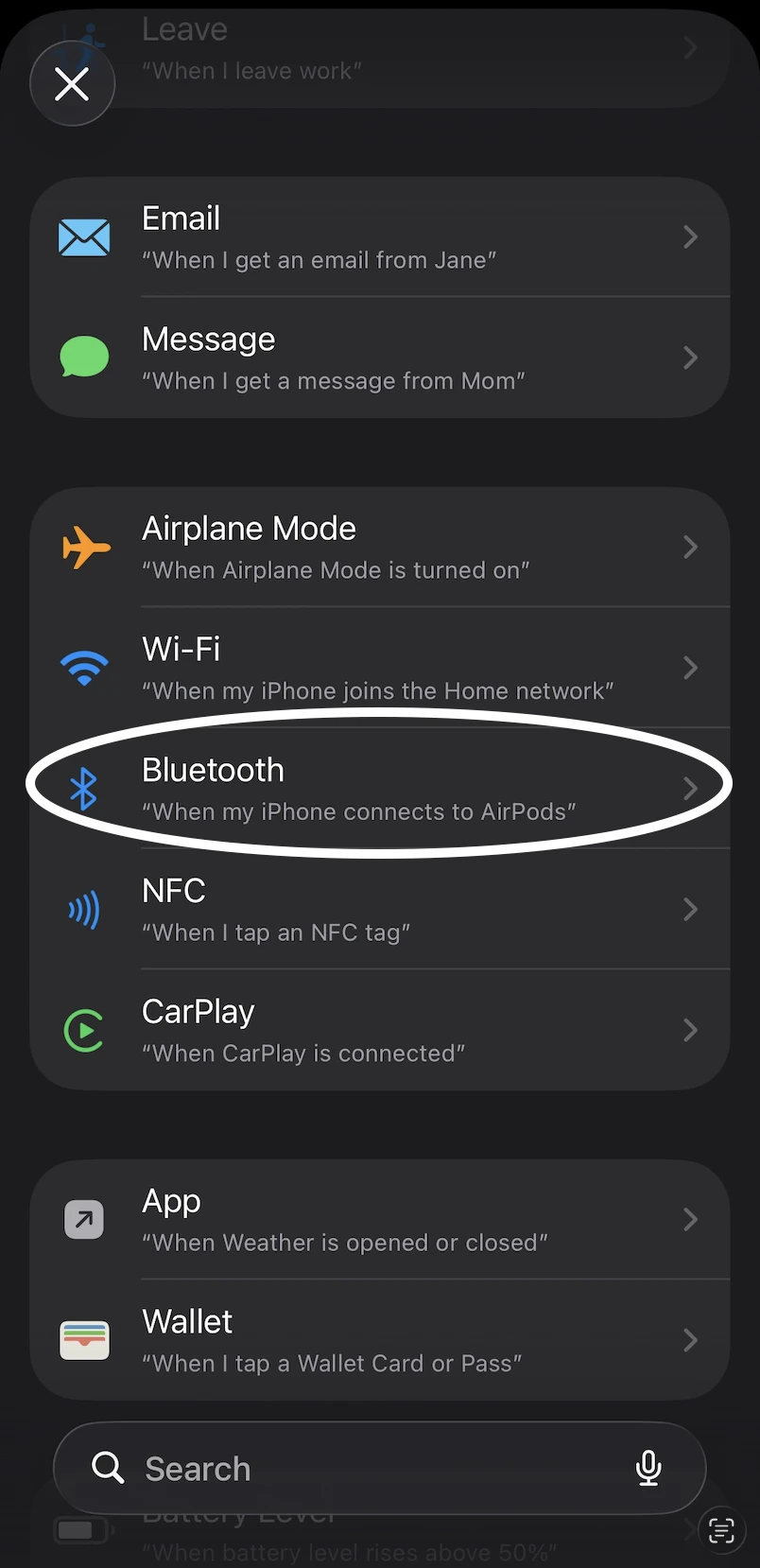
Selecting Bluetooth as the automation trigger
Choose Your Tesla and Connection Type
Now you’ll see the device selection screen. Tap “Choose” next to “Device” and select your Tesla from the list.
Important settings:
- Select “When Connected”
- Choose “Run Immediately” — this prevents a confirmation popup every time
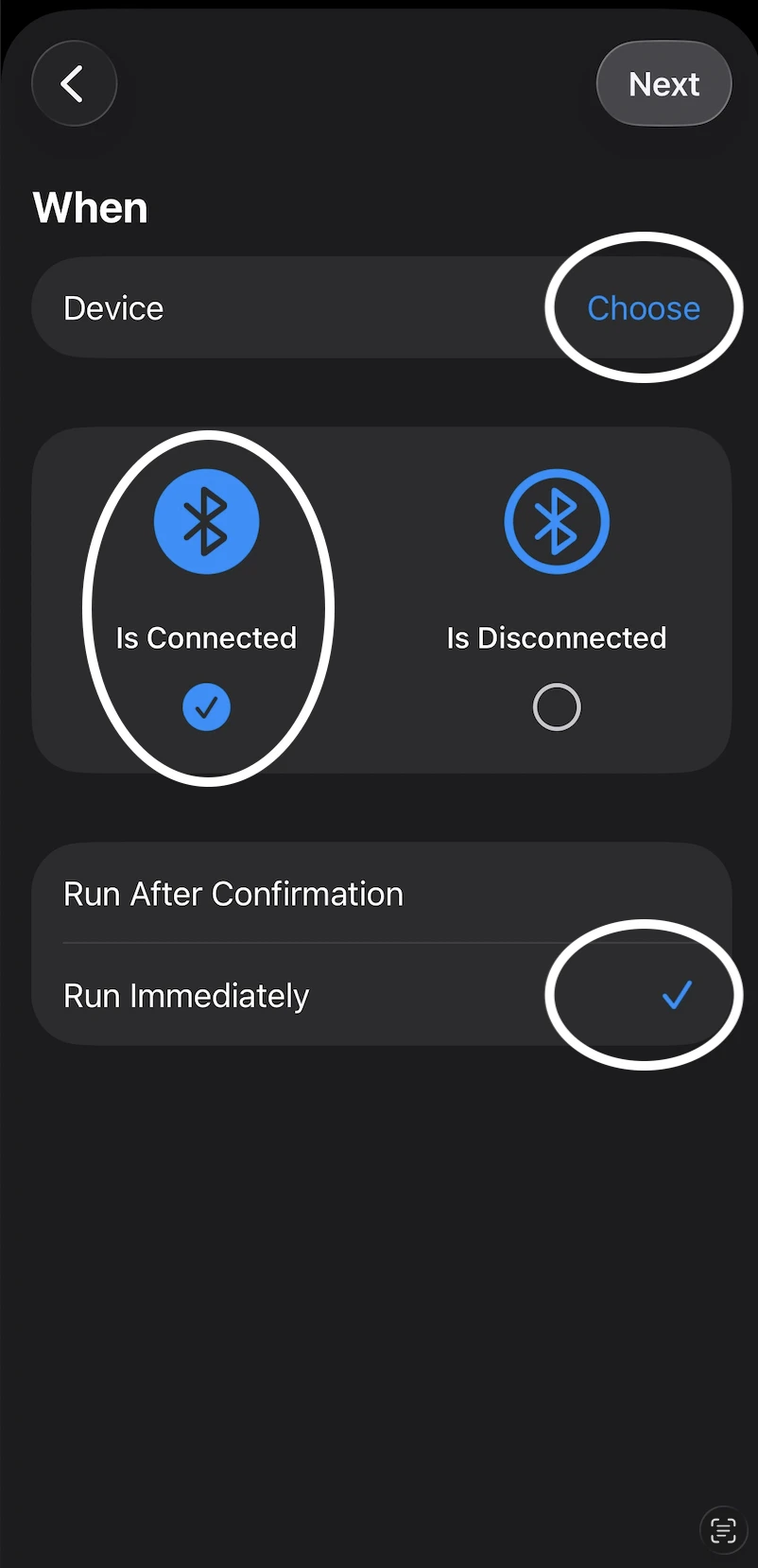
Configuring Bluetooth connection settings
Add the Hotspot Action
Now tap “New Blank Automation” or “Add Action”. Search for “Personal Hotspot” or “Hotspot” in the search bar.
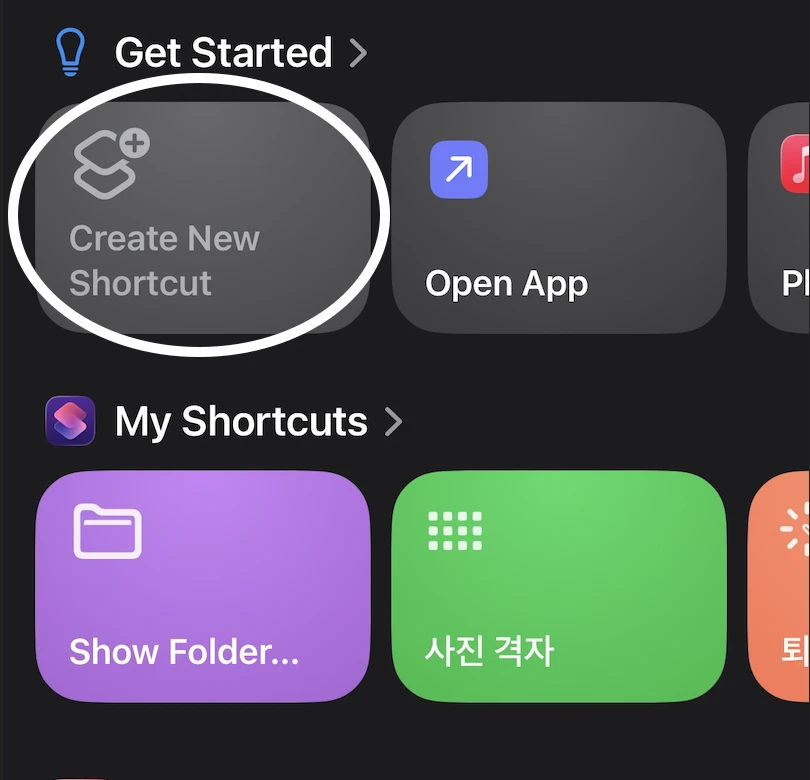
Creating a new blank automation
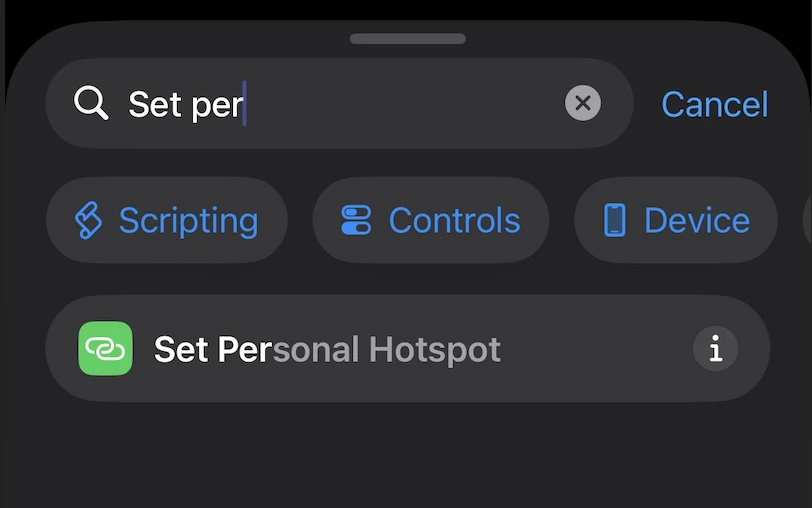
Searching for the Personal Hotspot action
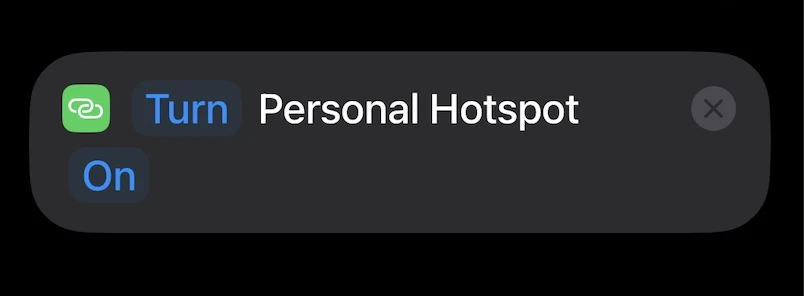
Setting the Personal Hotspot action to ‘On’
Select “Set Personal Hotspot” and make sure it’s set to “On”.
Save and Done!
Tap “Done” in the top right corner. That’s it!
Now every time you get in your Tesla and your phone connects via Bluetooth, your Personal Hotspot will automatically turn on.
Enabling the hotspot is only the first part of the solution. To ensure a persistent connection, specific Tesla system settings must also be configured.
Additional Tips: Auto-Disable and Wi-Fi Persistence
The process is almost identical, with a few key differences:
- Create a new Bluetooth automation
- Select your Tesla as the device
- Choose “When Disconnected” instead of “When Connected”
- Search for “Set Personal Hotspot” and set it to “Off”
- Save and you’re done
Conclusion: Smart Tesla Living without Premium Connectivity
By implementing this single automation, you can eliminate the repetitive task of manual hotspot activation. Understanding and leveraging these technical capabilities allows for a more integrated vehicle experience while optimizing subscription costs.